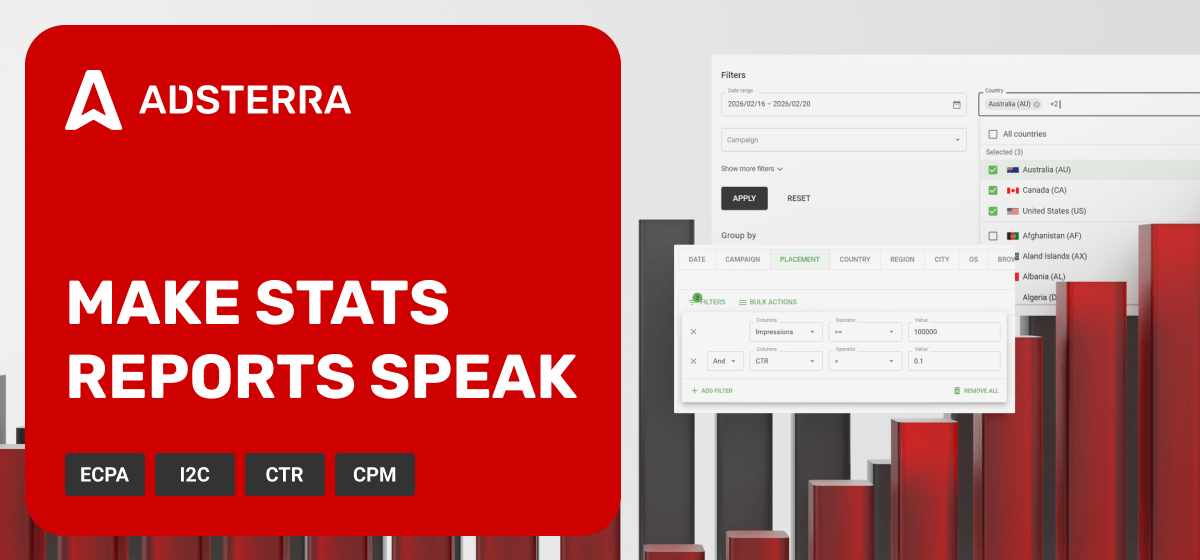
Ad campaign statistics solve the most painful problem of quick decision-making. We have enriched the Statistics dashboard with powerful metrics and tools, enabling you to monitor and react twice as fast. Benefits? Money saved and ROI gained!
Adsterra ad campaign statistics: levers, tools, and actions
Your Statistics page is the central hub for tracking all your ad campaigns in real time. Before exploring the details, let’s look at this control center. Five key data areas define your workflow:
- Main filters. Slice data by Date, Campaign, Creative, Country, Device, and more.
- Grouping. Compare performance by meaningful areas (Placement, Creative, Landing, OS, City, and more).
- Additional filters. Set conditions and hyper-focus on data slices to find insights and anomalies.
- Performance metrics (table). Instantly see impressions, clicks, CTR, conversions, CPM, CPA, I2C, and spend to evaluate efficiency and spending.
- Automation tools and bulk actions. React instantly without leaving the Stats page.
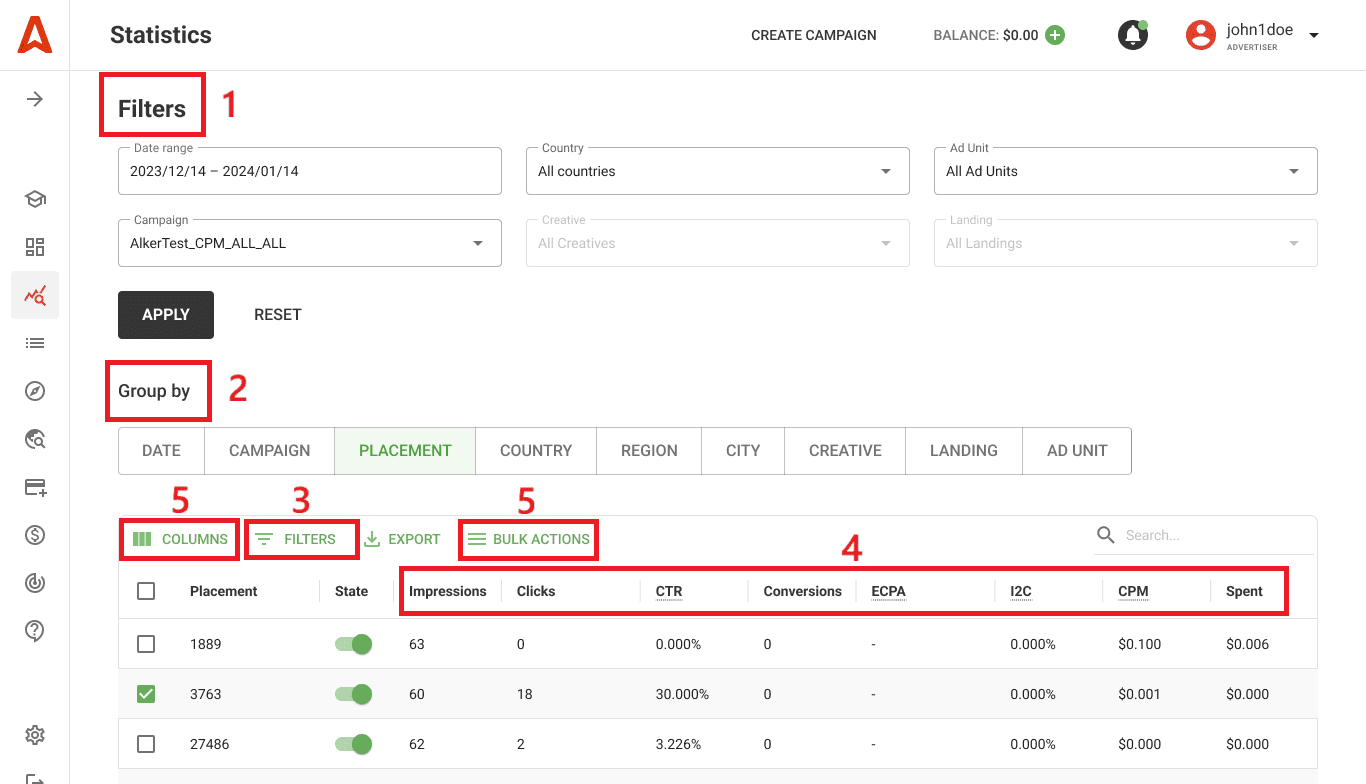
Next, you’ll focus on these five key areas to sharpen your vision, outpace the competition, and optimize advertising campaigns. To fully utilize the power of our statistics, create a new campaign and sign up now!
Main filters: Narrow down data to see exact traffic slices
Use the main ad statistics filters to access vast slices of data quickly. For example, you can select a date range and a single country to see how ALL your campaigns perform in this geo.
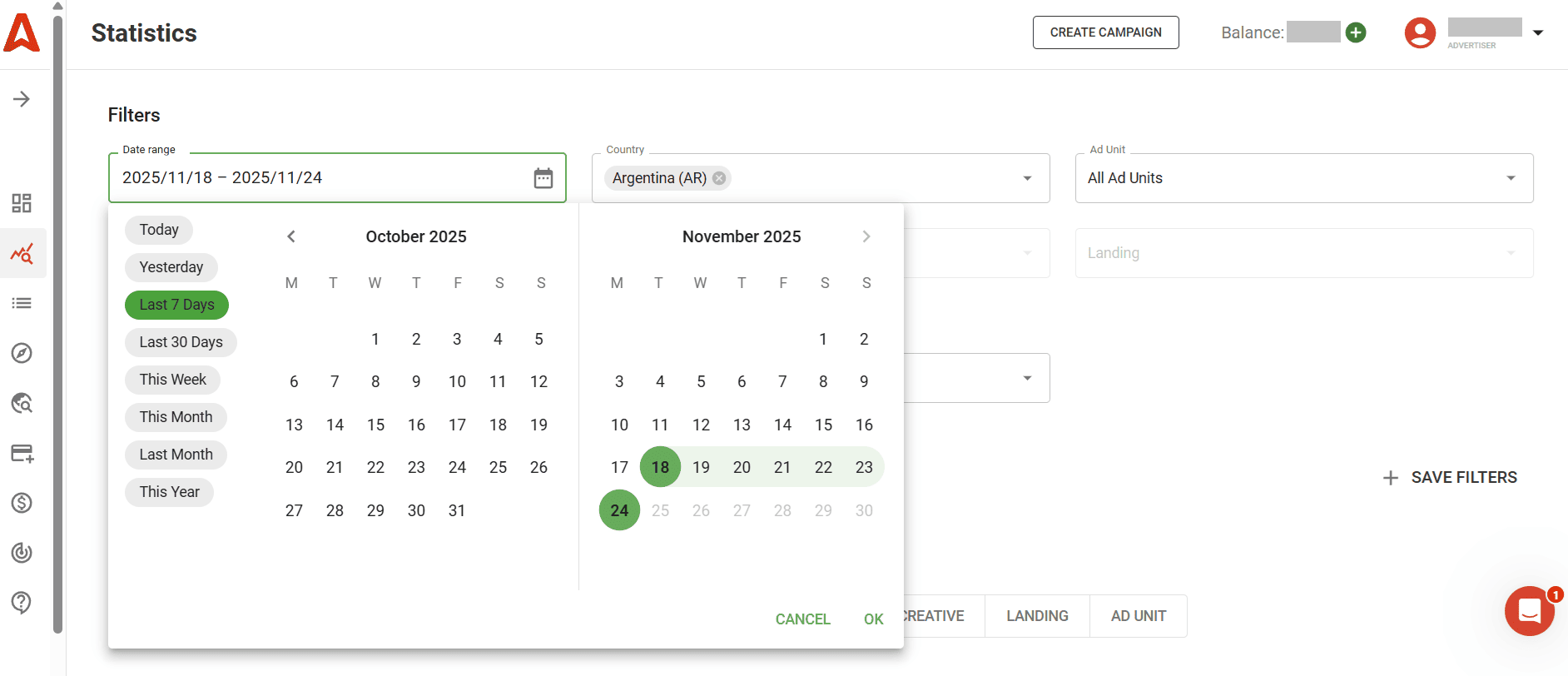
With only the main filters, you can specify dates, campaign, country, ad format, ad creative, landing page, and even OS and browser.
Grouping options: Compare performance and make decisions
Grouping options help you research and compare performance within specific data slices inside the main filters. They include:
- Date
- Campaign
- Placement
- Country
- Region
- City
- OS
- Browser
- Creative
- Landing
- Ad Unit
Let’s say your main filters included dates and two geos (countries). With grouping, you can divide the results by Сampaign and see which perform better and which need corrections.
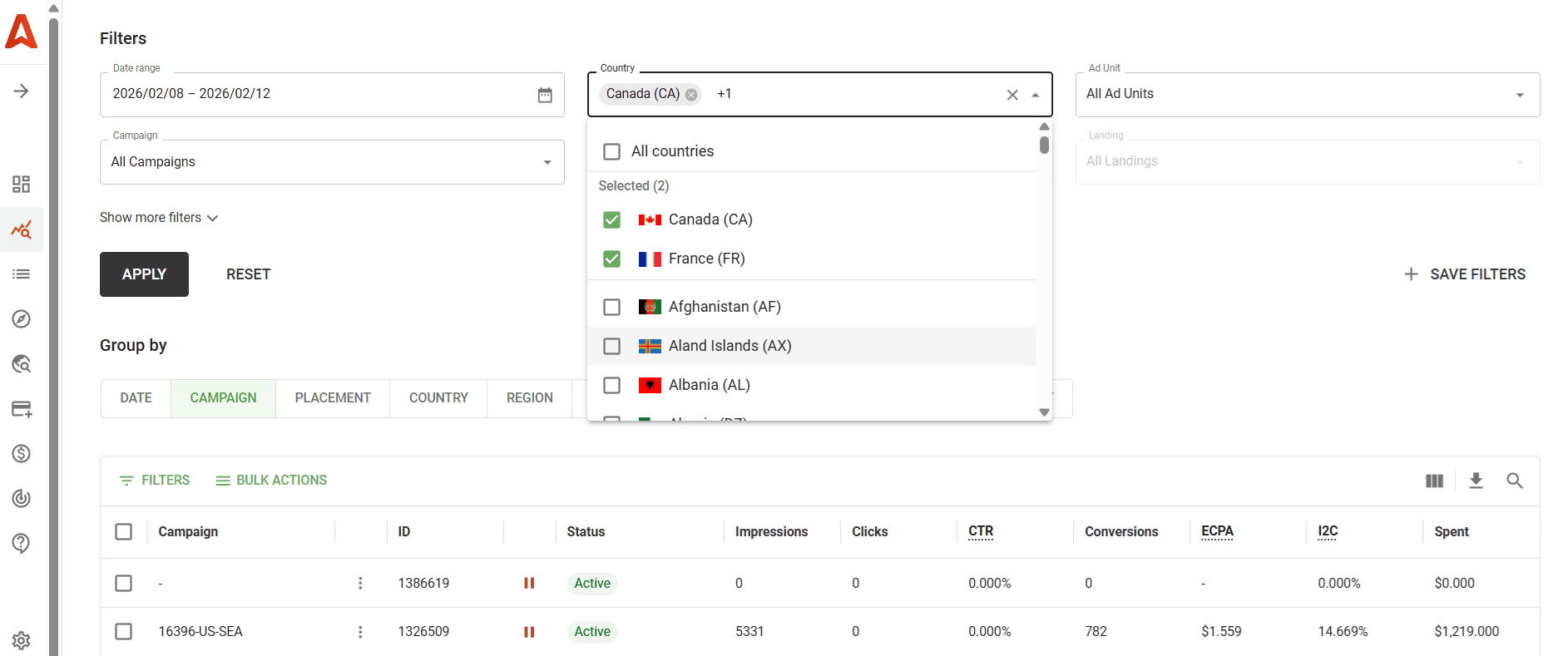
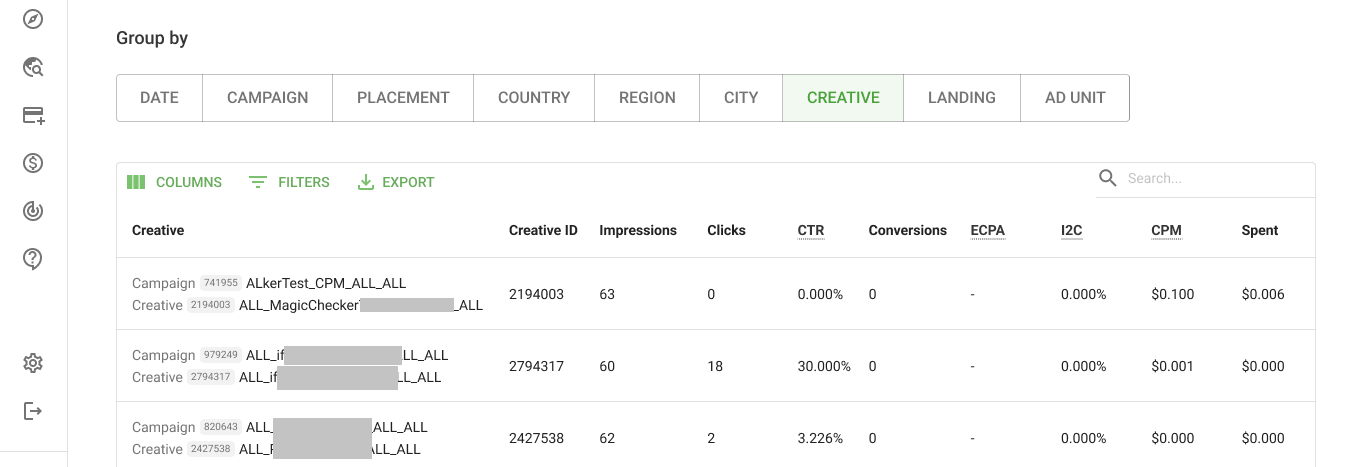
Another example: You can dive into how each of your creatives performs within one or several campaigns. The stats report will display ad creatives matched with their campaigns, along with key metrics.
Additional filters: Spotlight problems and insights
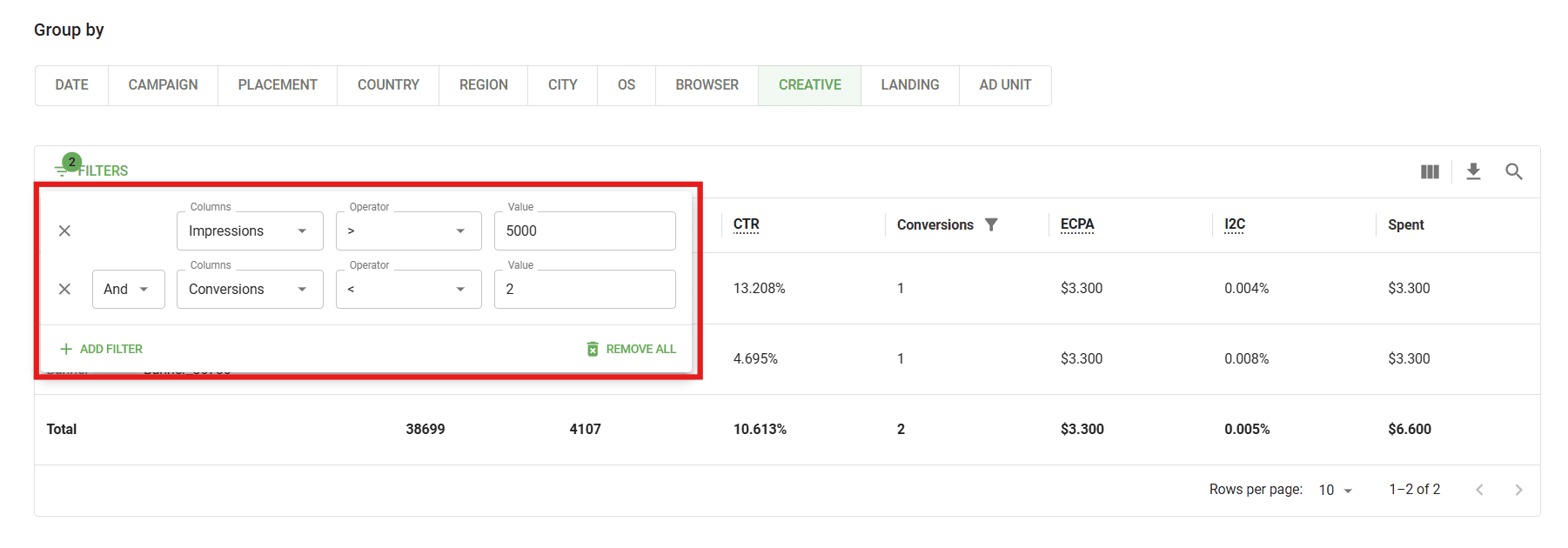
Additional filters add critical value to grouped data. You command them precisely which parameters to check, and they reveal problem areas and growth points. Depending on the grouping option, filters open more opportunities for data tweaks.
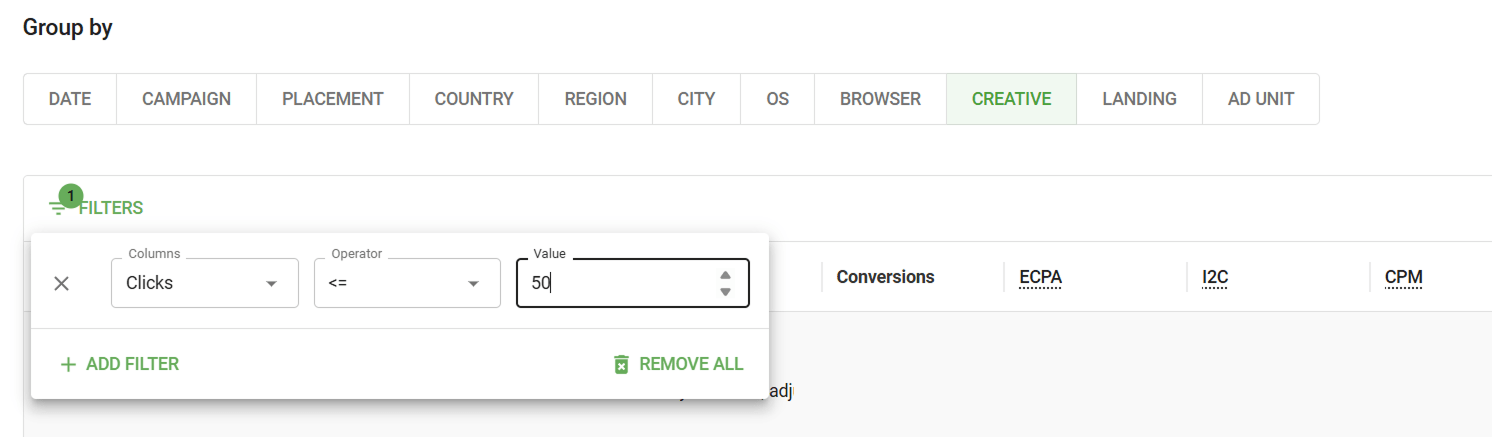
For example, you can set conditions to spotlight ad creatives sending few conversions. Or, health-check critical metrics on selected campaigns by entering their IDs.
Performance metrics: Evaluate ad effectiveness compared to spending
Performance marketing metrics help you make informed decisions based on HOW your :
- IMPRESSIONS
- CLICKS
- CTR (click-through ratio)
- CONVERSIONS
- ECPA (effective cost per action)
- I2C (impression-to-conversion rate)
- CPM (cost per thousand impressions)
- SPENT (money spent, depending on the pricing type).
By default, metrics are grouped by date (the first column in table). Click between tabs to group data by other parameters. The core metrics’ set will remain the same but more options will appear depending on the initial grouping.
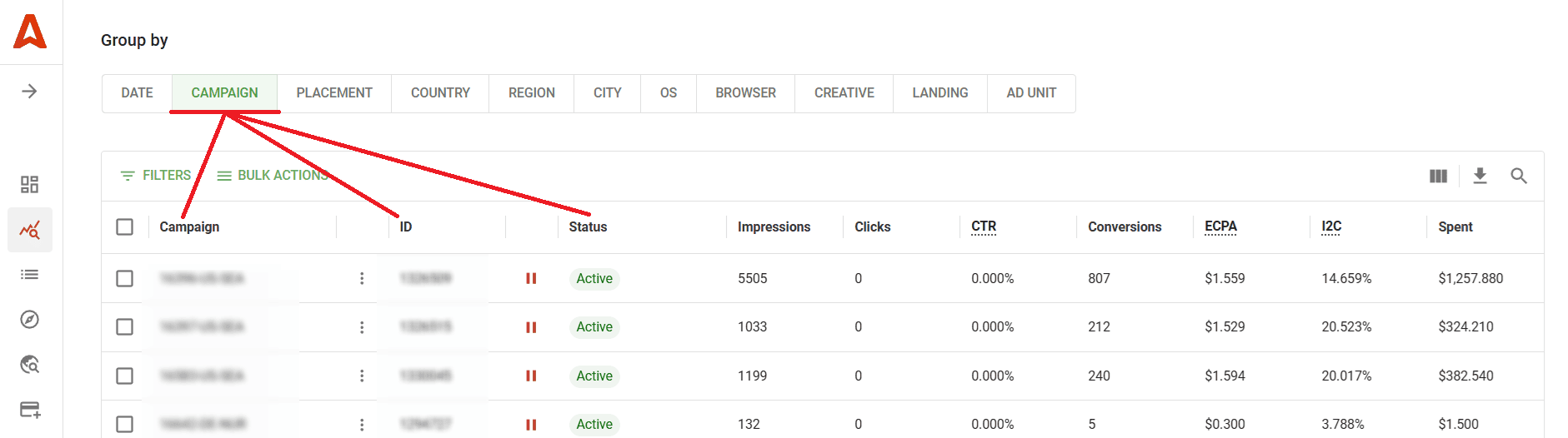
If you group data, say, by Campaign, then your table’s first column will be CAMPAIGN NAME. You will also see additional fields, CAMPAIGN ID and Status.
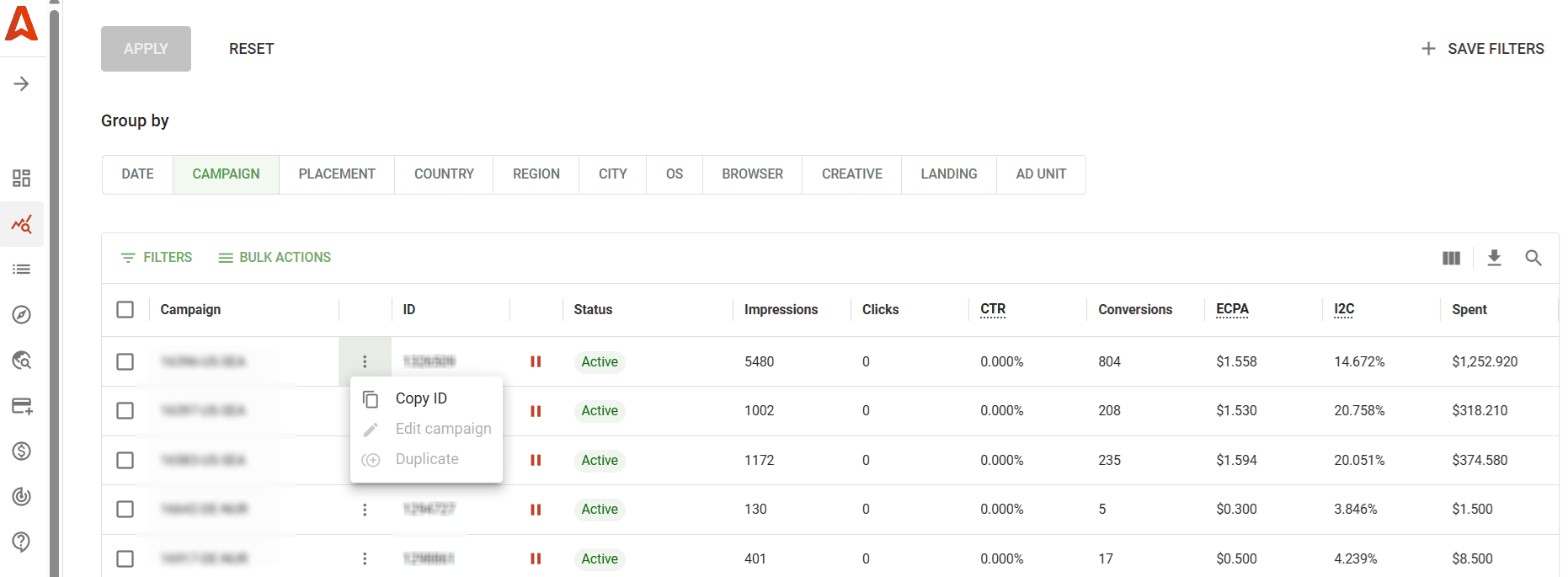
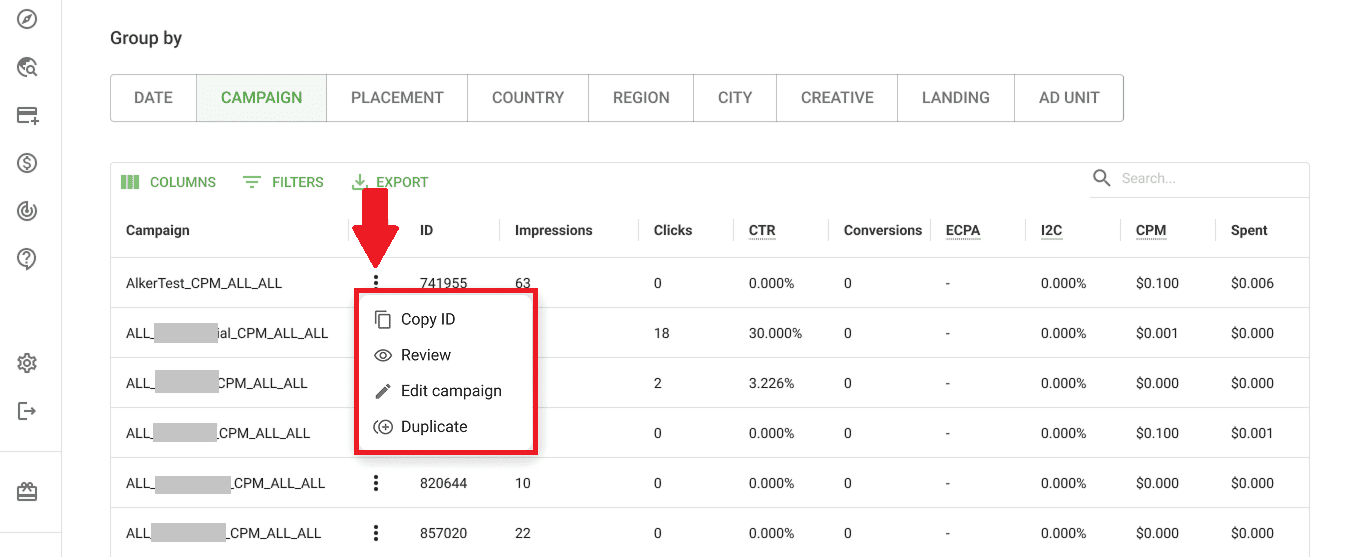
If you click the ‘three-dot’ icon next to the campaign name, you’ll get access to fast actions copying the ID, editing or duplicating the campaign.
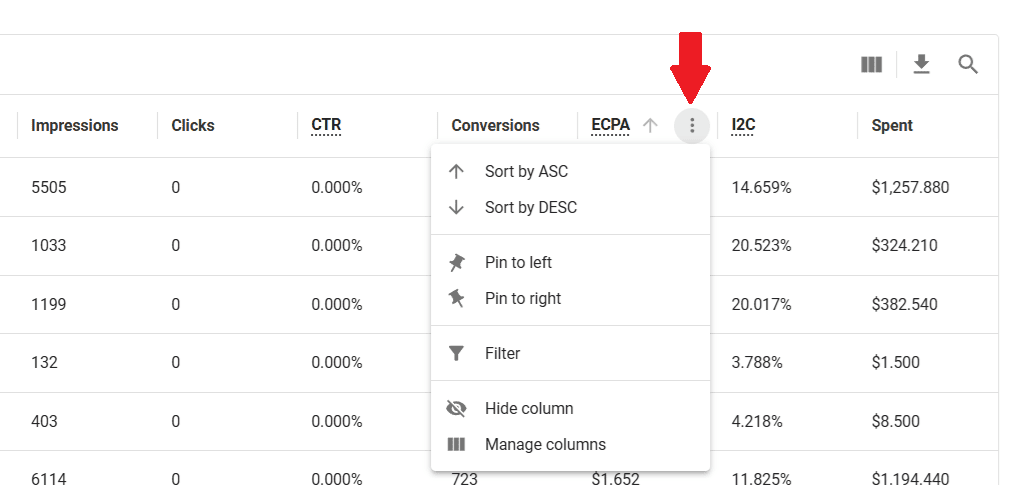
By hovering the metric’s name in the column’s header, you can check its formula. By clicking the “three-dot” icon near the header, you access extra actions: sort data, pin the column, hide it, or add a filter.
Automation, presets, and bulk actions: Customize datasets
Automation features help you customize Statistics, building a comfortable workspace. What’s here for you?
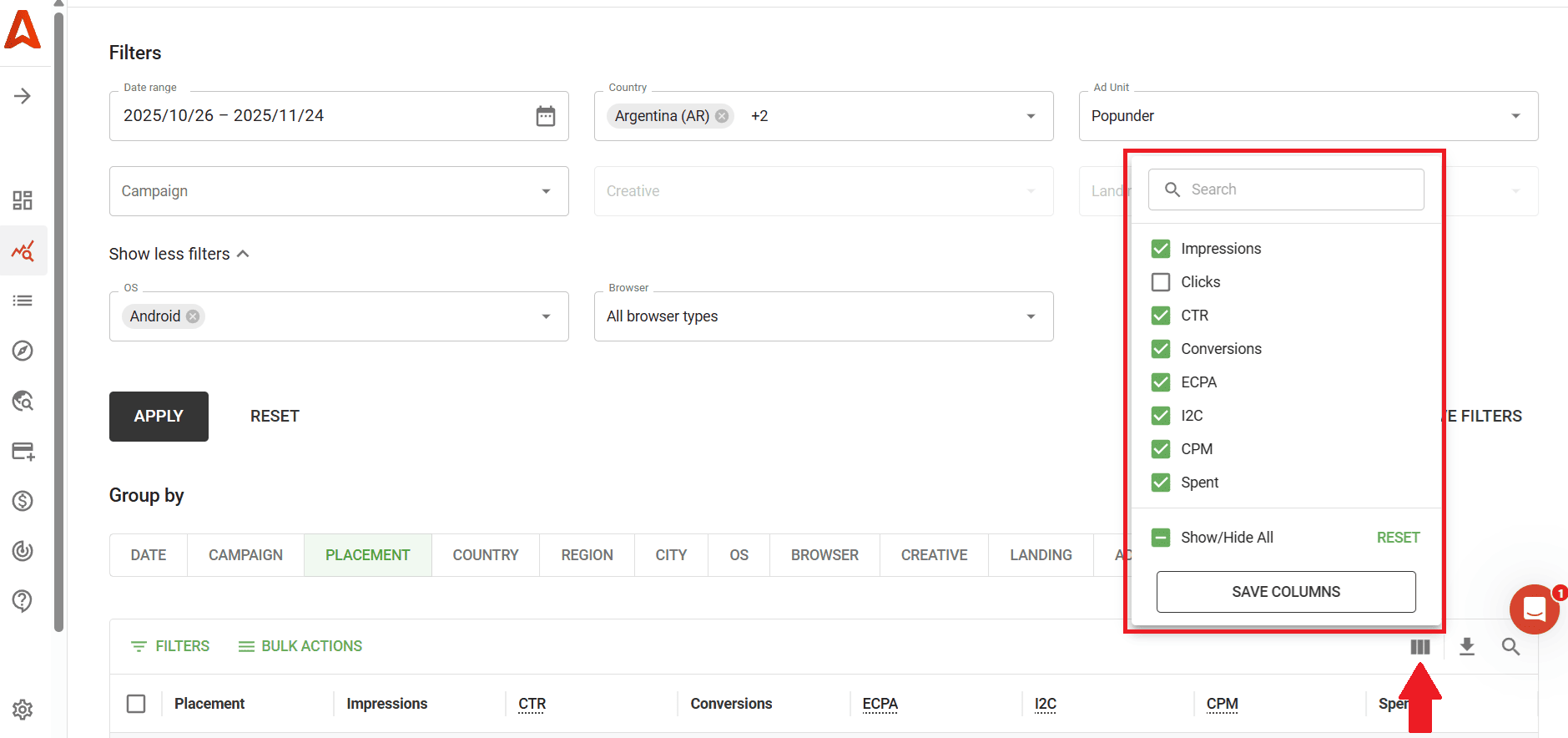
Column settings
Select and deselect columns to leave only those you want to focus on right now. This will remove unnecessary data and maintain clarity.
Filter presets
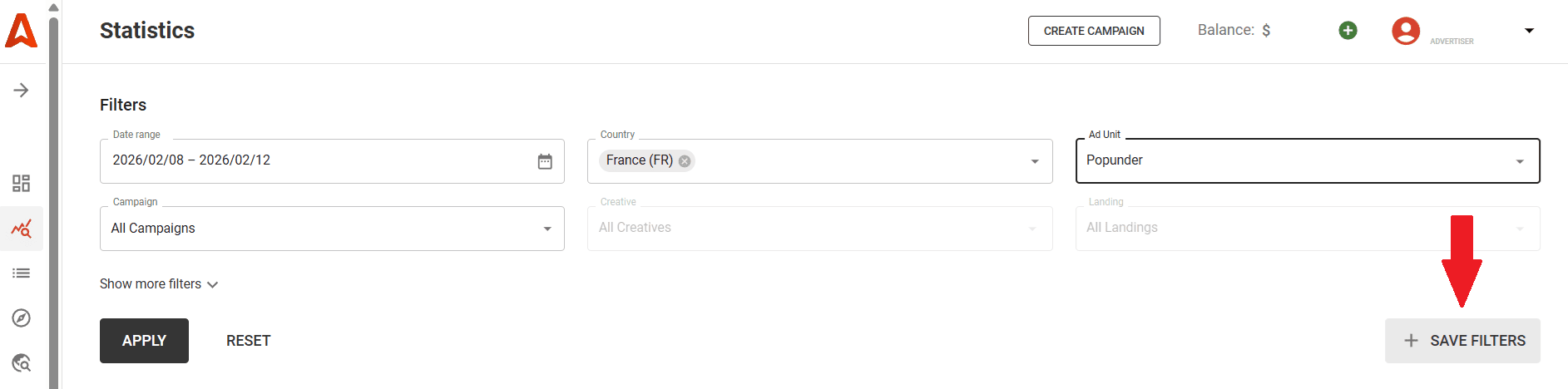
Save filter settings to get back to the most critical segments of your ad stats. You can create up to 10 presets per account.
Quick actions
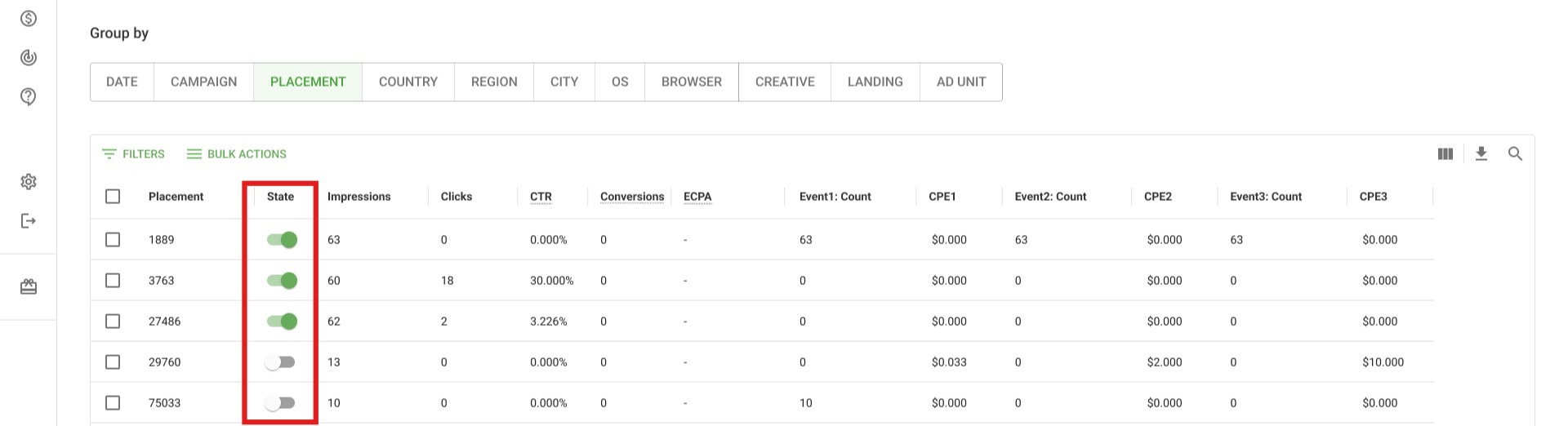
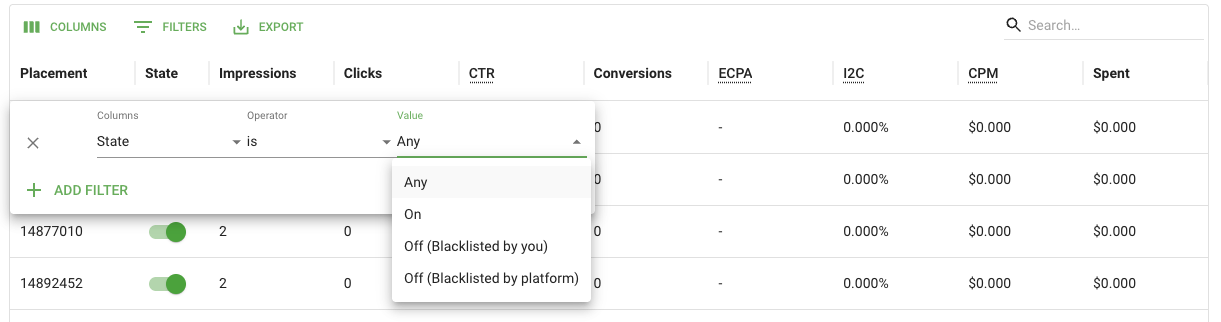
When you group performance stats by PLACEMENT or CAMPAIGN, you see the State and ID columns. Using toggles, you can unlink placements and add them to a blacklist. Just switch on/off the toggle in the State column.
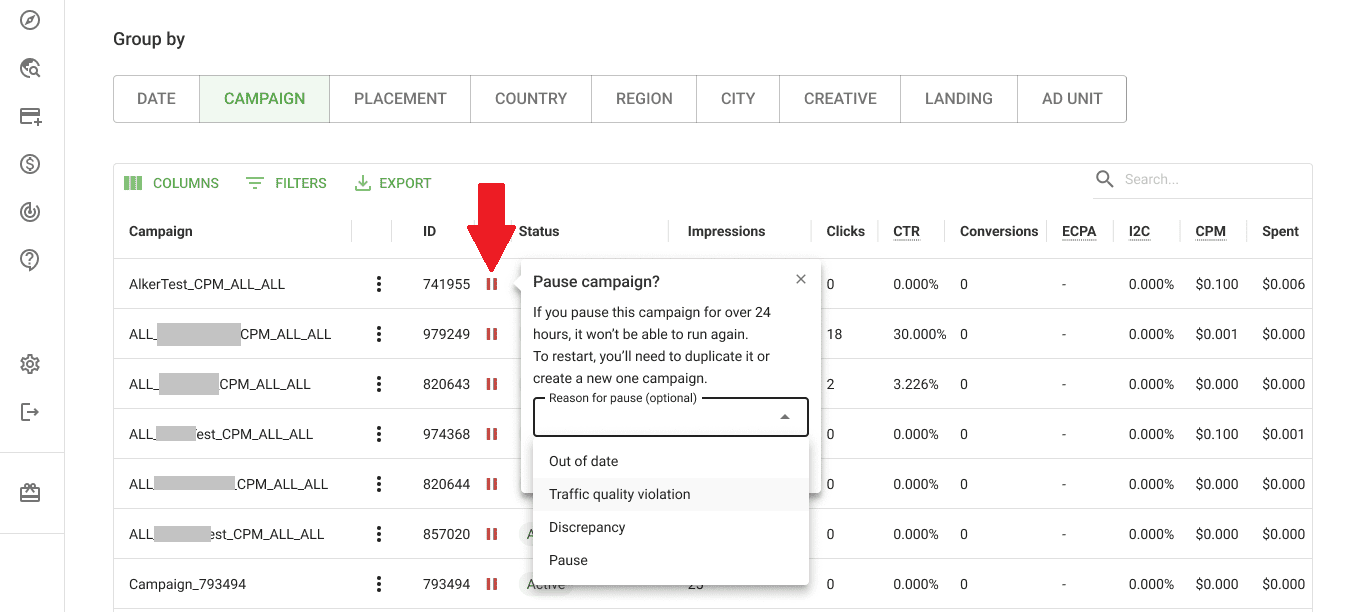
When you need to make quick edits, you can pause any of your active campaigns using the ID column of the table. When pausing a campaign, you’ll see a reminder to restart it within 24 hours.
Bulk actions
Bulk actions allow you to transform insights to tests or immediate outcomes. Let’s imagine you noticed underperforming placements. Select these, click BULK ACTIONS, and choose Blacklist. Selected placements will be unlinked from your campaign, but you can restore them later when needed. The same way, you can start and pause campaigns: choose Group by ‘Campaign’ → BULK ACTIONS → Start or Pause’.
Please note: BULK ACTIONS are available when the table is grouped by Campaign or Placement. Bulk blacklisting is available if your main filters include one campaign, and this campaign is not whitelisted.
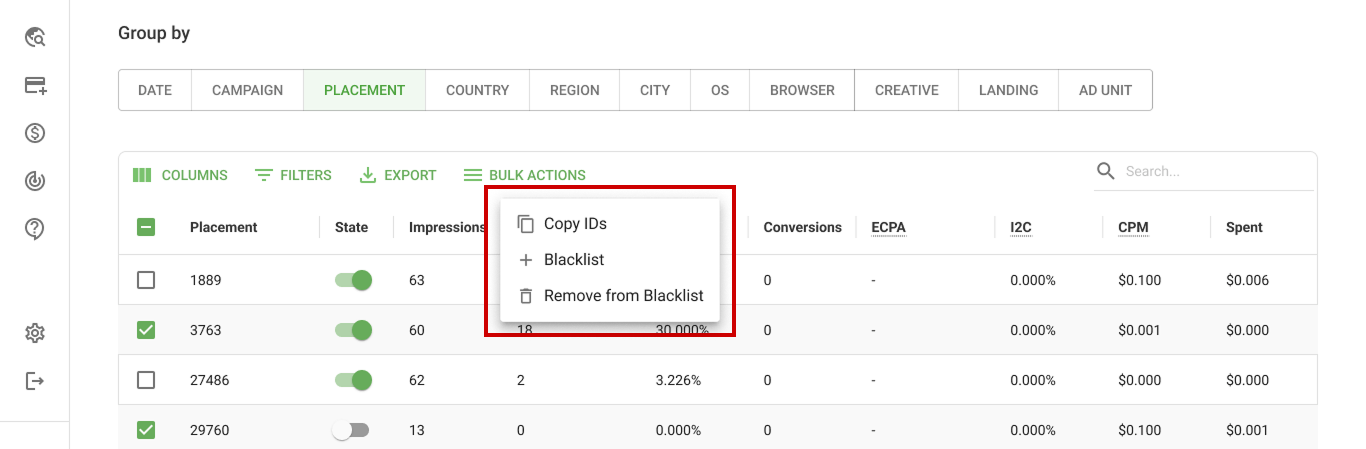
If you want to copy a set of campaigns or placements for further analysis, refer to BULK ACTIONS. Just select required items and copy them in bulk!
Ad campaign statistics use cases: Visibility and speed
You can examine ad performance under a microscope or slice data thinly to spotlight current flaws.
Geographic breakdown
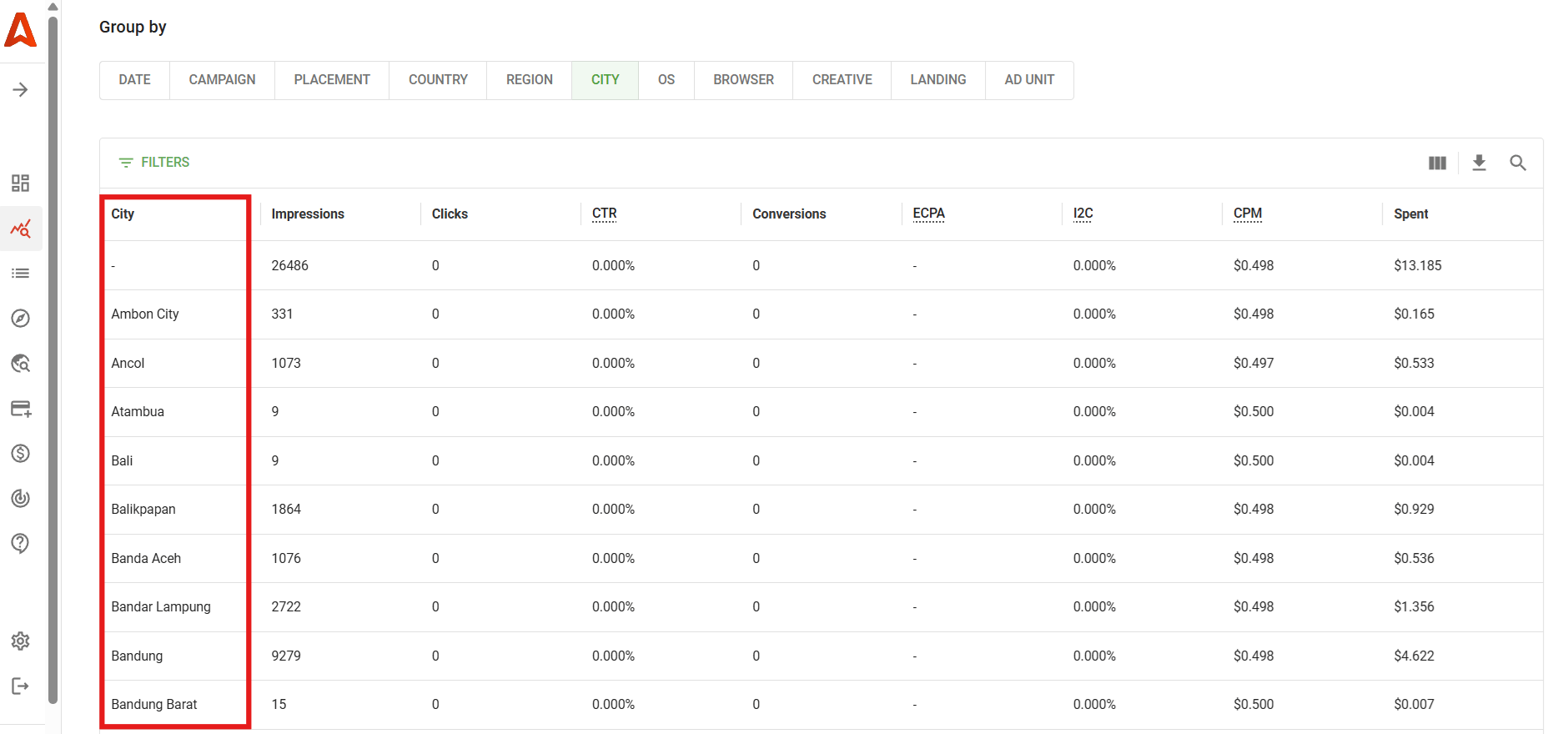
Segment your results by country, region, or city in one click (stats grouping). Spot high-ROI markets and flag underperformers without manual calculations. Such a breakdown is a surefire way to check if your location-based targeting tactic pays off.
Device & browser performance
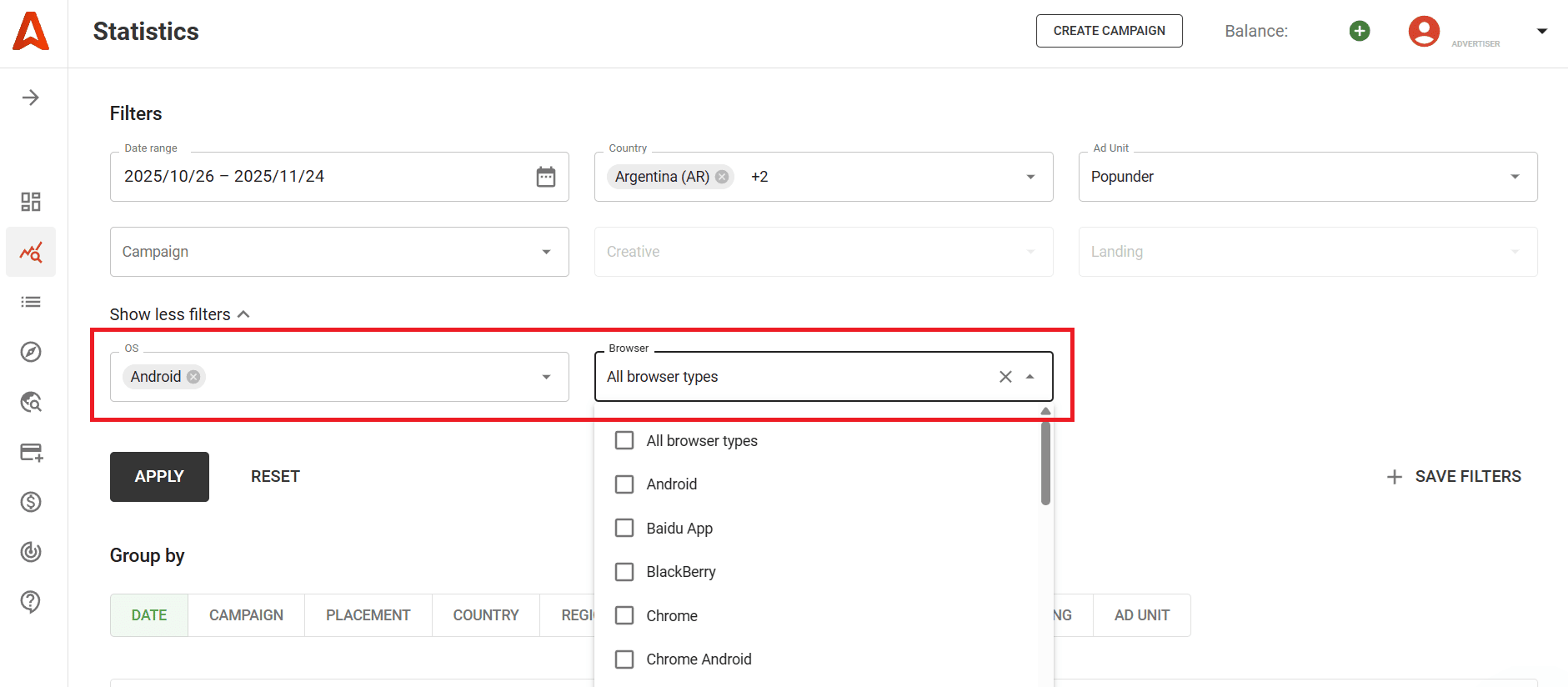
Filter stats by browser and OS. Quickly discover which devices deliver clicks and conversions—and which ones waste advertising budgets.
Placement-level performance
See exactly where the most profitable traffic comes from and increase payouts (set custom bids) to beat competitors. Placement-level grouping shows you which sources bring top audiences, which perform average but spend the least, and which are money drainers. It’s critical for marketers who need to control ad spending on a daily basis.
Make sure you have selected one campaign (main filters), then group stats by placement, and check critical metrics (especially, spend vs clicks/conversions). Next, use toggles in the State column to remove unwanted items. Use additional filters to navigate through placement’s states quickly.
Campaign settings double check
When grouping ad stats by CAMPAIGN, you can ensure all settings are ok and even check which ad creatives have been added. Click the three-dot icon ⋮ near the campaign name and choose Review. In the same way, it’s possible to edit or duplicate the current campaign’s settings and send them for verification.
Ad campaign statistics: decision making and budget maximization
Advertising campaign statistics go far beyond blunt reporting. Fast filtering means instant action and timely money waste prevention. Let’s explore how even beginners can enhance their results.
Finding profit killers and boosters
Find creatives or placements delivering impressions but zero clicks or conversions. Or, use additional filters to spotlight placements/creatives with the highest CTRs, I2C results. Possible solutions:
- Pause inefficient campaigns directly from the table
- Remove (unlink) dubious placements using the State column or via BULK ACTIONS
- Edit campaigns, change or remove specific creatives
- Duplicate campaigns with a high potential to amplify the results.
Detecting rapid budget consumers
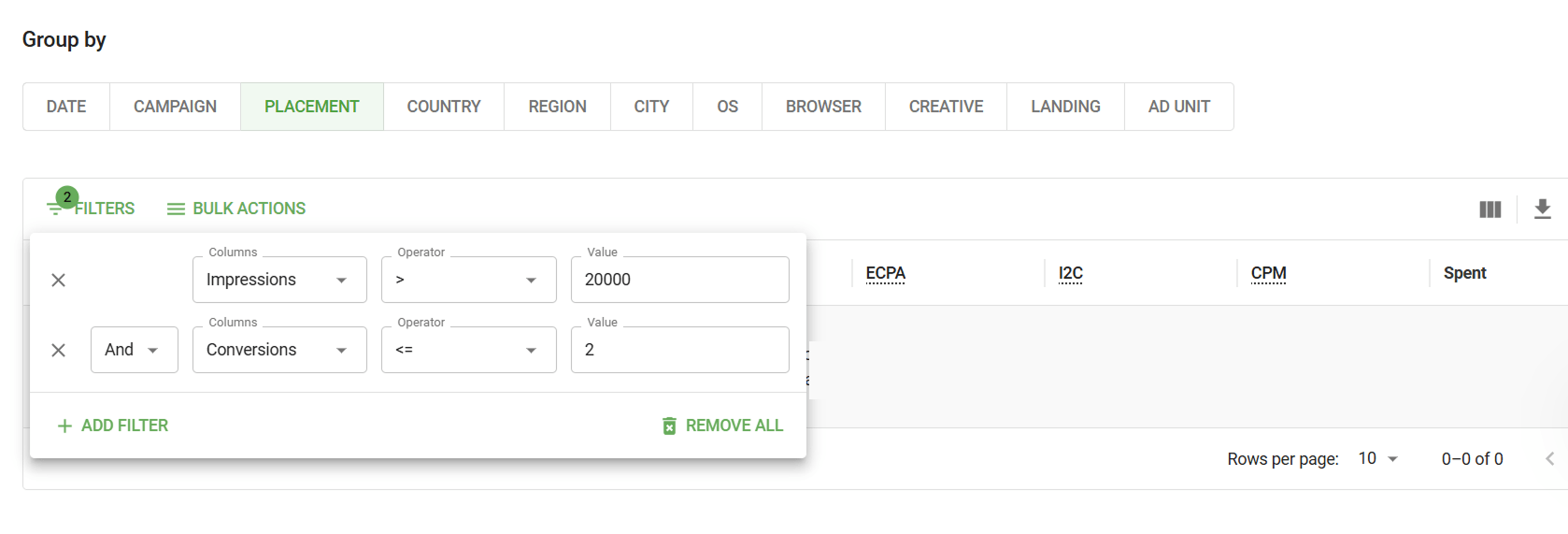
Spot high-impression, low-conversion placements during events or seasonal spikes. Bulk blacklist to protect your budgets. If you copy IDs, you can form a greylist and run a separate campaign with minimum bids for these placements.
A greylist is a set of placements you don’t want to remove (blacklist) completely, but they require an alternative bidding tactic.
Scaling best performers (whitelisting)
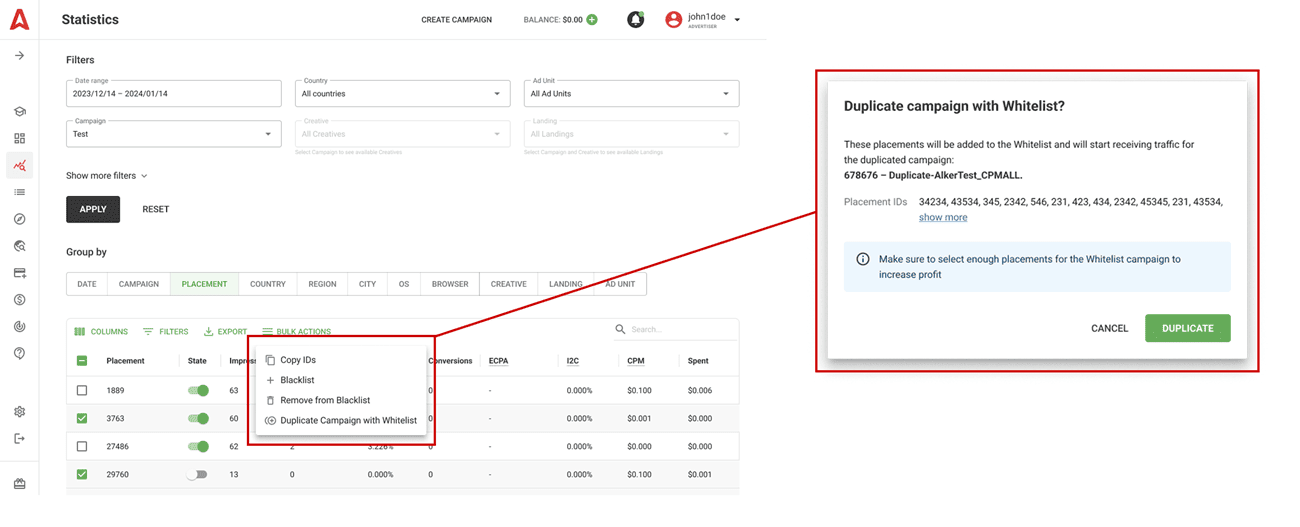
Instantly locate placements exceeding benchmarks. Duplicate and scale in minutes, creating separate whitelisted campaigns.
Curbing irrational spend via budget limits
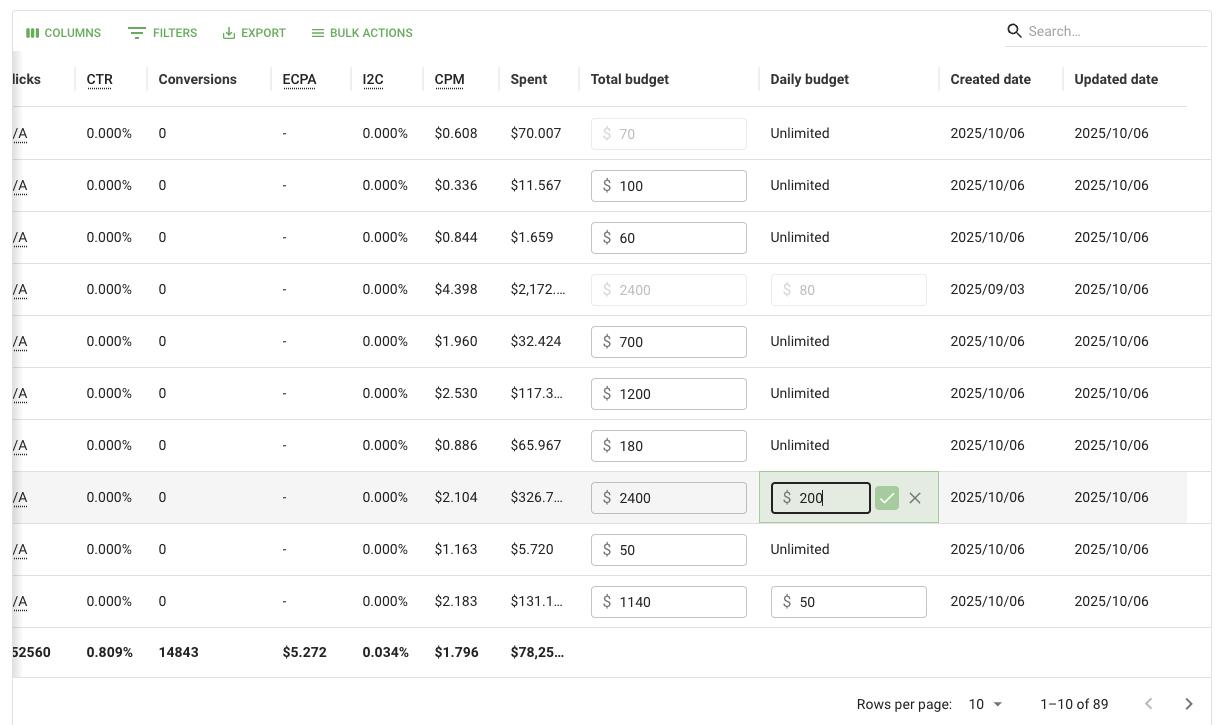
Seasonal sales or sporting events often come along with traffic spikes. Some ad placements can jump from some 10,000 to 100,000 daily views, but you don’t need to waste all of your money on one source. Manage expenses quickly in just two clicks: group ad stats by campaign and find the Daily budget or Total budget column. Enter the limits, and you’ll prevent sudden cash waste.
Maximizing ROI, outrunning competitors
Benefit from streamlined bid management. Ad campaign statistics enable quick bid adjustments across multiple placements, saving your time and allowing you to outrun the nearest competitors.
- Ensure you’ve selected one campaign and grouped the table by placement
- In the Custom Bid column, change the payout value per specific placement.
- The fix will be applied immediately.
Want to act even faster? Use BULK ACTIONS to increase/decrease payouts.
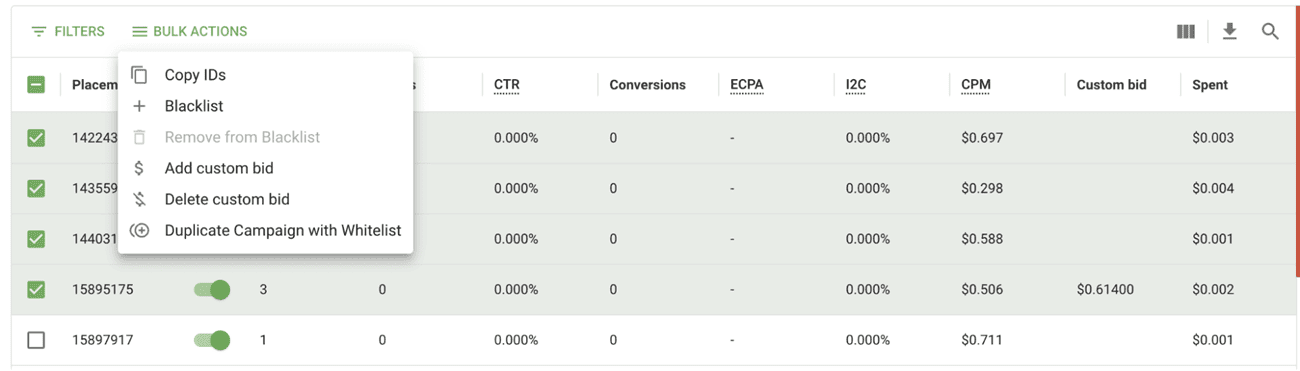
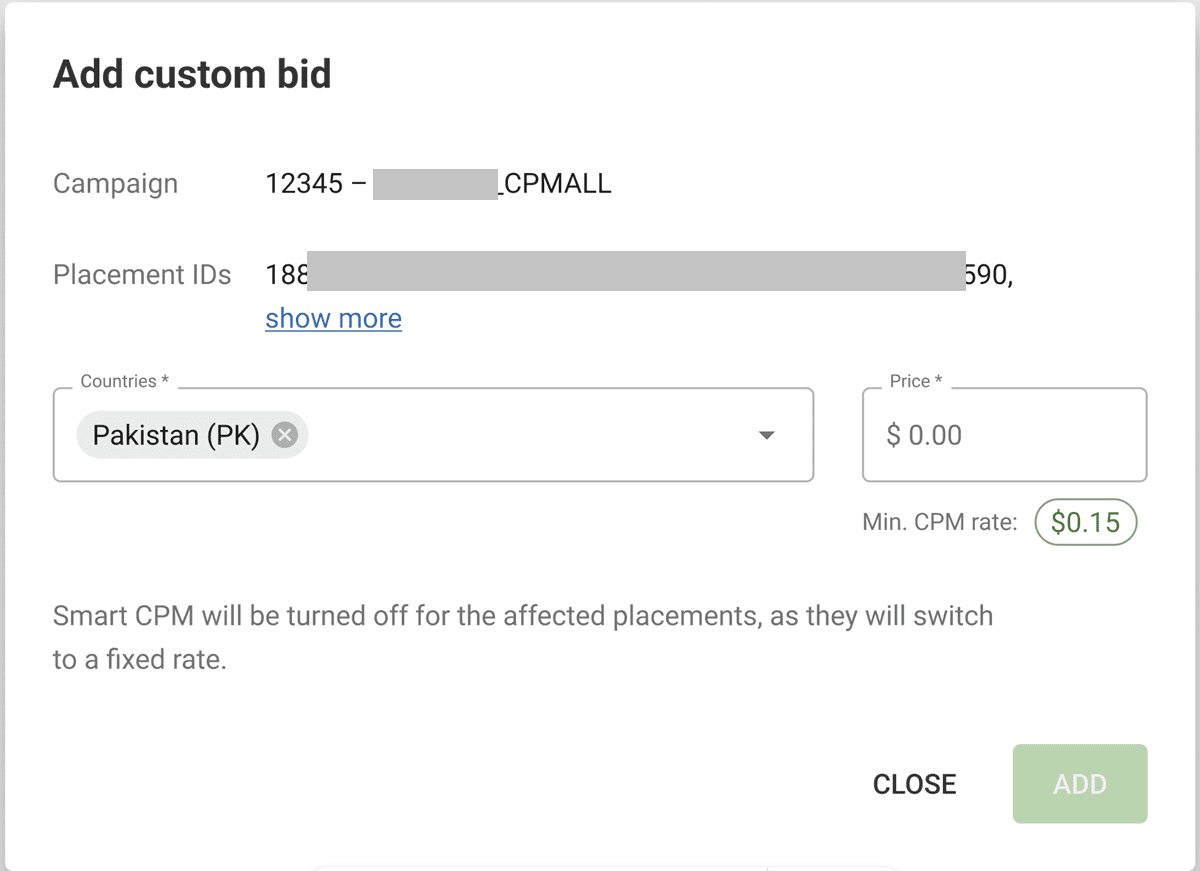
Select up to 100 placements (for campaigns with 1—60 countries selected) and click BULK ACTIONS —> Add Custom bid. The new custom bid value will be applied to all of them.
Pick the country you want to apply new payouts or leave the field empty to embrace all counties per campaign. Click ADD.
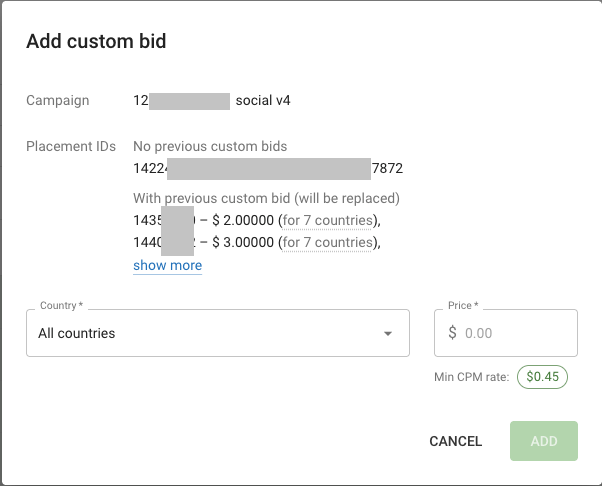
If you run a Smart CPM campaign, all your Custom Bids will become fixed, but the Smart CPM algorithm will continue working for all the rest placements.
Strategy: Putting it all together
Advertising campaign statistics allow you to build solid workflows, powering you with both insights and analytics. How can you put together all of these tools, filters, and metrics? Here’s a very basic activity plan you can start with as a template and rebuild into a full-cycle workflow.
- Daily: run KPI presets and address issues.
- Weekly: check various data slices, grouping stats by creatives, OS, browsers. Find laggards and edit the campaign.
- Weekly: audit placements, blacklist underperformers
- Every 14 days: audit placements, duplicate the campaign with a whitelist.
Please note: CPM campaigns demand a long-run game while the CPA-based ones are quick to bring results. As recommended by Adsterra experts, iGaming campaigns and all similar offers with complex conversions (aka deposits) are better to run with the CPM pricing.
Final thoughts: Make stats speak!
A powerful ad campaign statistics dashboard isn’t just a tracking tool. You’re not just reading numbers—you’re building a system for continuous improvement, adapting every week. It’s your competitive edge. Adsterra serves you options for instant performance scans and deeply customized workflows. And what’s also essential — you can ask us anything about Stats, because reading tutorials can be a bit dreary compared to getting a handy short answer from an expert manager 😉